Reading the tk999 Interface: Layout, Clutter and Clarity
Most reviews of a betting platform spend their time on odds, bonuses and payout speeds. This one does not. What follows is a walkthrough of the interface itself — the screens a person actually touches when they open tk999 on a phone — judged on clarity rather than outcomes. The question running through every section is simple: does this screen tell me what I need to know, or does it make me hunt for it?
That matters more than it sounds. A betting interface is a high-pressure environment. Users arrive with a specific intention, often in a hurry, sometimes on a slow connection with a screen that is smaller than they would like. Good layout respects that. Poor layout turns a two-tap task into a five-minute search. So this is a usability read, screen by screen, in the order a new user would encounter them.
The Landing Screen: First Impressions and Visual Weight
The landing screen is where the design either earns trust or spends it. On tk999, the first thing that registers is the density of the page. There is a lot happening: promotional banners, sport categories, featured markets, and a persistent navigation bar. For a returning user, that density is efficient — everything is one tap away. For a first-time visitor, it can feel like walking into a room where every wall is talking at once.
What saves it is hierarchy. The most important element on the screen — the entry point to registration or login — is visually distinct and stays within thumb reach. That is a deliberate choice, and a correct one. The secondary clutter, the banners and rotating promotions, sits above the fold but does not block the primary action. If the promotions had been placed over the login area, the screen would feel hostile. They are not, so the screen reads as busy rather than broken.
The typography is another point worth noting. Labels are short and mostly consistent in size, which keeps scanning easy. Where the layout slips is in the number of competing accent colours. Three or four highlight colours on one screen is one or two too many; the eye has no single place to rest. It is a cosmetic issue rather than a functional one, but it does make the page feel heavier than it needs to.
The Registration Flow: How Many Steps Before You Are In
Registration is the screen where usability has real consequences, because every unnecessary field is a reason to leave. The tk999 sign-up form is short by industry standards. It asks for the essentials — identifying details and a password — and does not pad the form with optional questions that could be collected later. That is the right instinct. A form that fits on one mobile screen without scrolling is a form people finish.
Field labelling is clear and the input boxes are large enough to tap without zooming, which is not a given on betting sites. Error messaging, when it appears, is placed directly under the relevant field rather than at the top of the page, so the user does not have to scroll back up to find out what went wrong. Small decision, meaningful difference.
The one place the flow could tighten is the transition between the form and the confirmation step. There is a moment where the screen reloads and the user is left looking at a mostly empty page with a small progress indicator. On a fast connection this is invisible. On a slower one, it is the point where people start tapping the back button. A skeleton placeholder or a clearer loading state would remove that dead second entirely.
The Sports and Casino Navigation: Finding a Market Without Getting Lost
This is the screen that decides whether the platform is usable day to day. A betting product lives or dies on how quickly a user can move from “I want to bet on this” to “I have found the market.” The tk999 navigation handles this with a horizontal category strip and a nested list beneath it. Sports sit at the top level, then leagues, then individual events. The structure is conventional, and conventional is correct here — nobody wants to learn a new mental model just to find a football match.
Search is present and does most of the heavy lifting for anyone who knows what they are looking for. Typing a team name returns results quickly, which effectively bypasses the category tree altogether. For users who browse rather than search, the category strip is scrollable and does not require precision tapping. The icons are recognisable without being cryptic.
Where clutter creeps in is in the sheer volume of live markets displayed simultaneously. On a busy evening, the list of in-play options can run long, and the visual distinction between one market and the next relies heavily on thin dividers. Increasing the spacing between rows, even slightly, would make the list far easier to scan without changing its content at all. The information is all there; it is the breathing room that is missing.
The Account Area: Controls, Balance and Self-Management
The account area is the least glamorous screen and, arguably, the most important. It is where a user checks their balance, reviews their history, and manages the settings that keep their activity within the limits they have chosen. Clarity here is not a design preference — it is a functional requirement.
On tk999, the account area is reachable from a single persistent icon, which is the right pattern. Balance is displayed prominently and updates without a manual refresh, so there is no ambiguity about what is currently available. Transaction history is listed in reverse chronological order with clear timestamps and amounts, which is exactly how a person expects to read it.
The settings section is where the layout earns credit. Deposit limits, session controls and notification preferences are grouped together rather than scattered across unrelated menus. Each control is labelled in plain language rather than internal terminology. That matters: a limit-setting screen that uses jargon is a limit-setting screen people abandon. Here, the controls are legible enough that a user can find and adjust them without support.
A minor criticism: the account menu uses a lot of vertical space for items that are rarely used, pushing the frequently used options further down. Reordering the list so that balance, history and limits sit at the top would match how the screen is actually used.
The App Screens and the Overall Verdict on Clarity
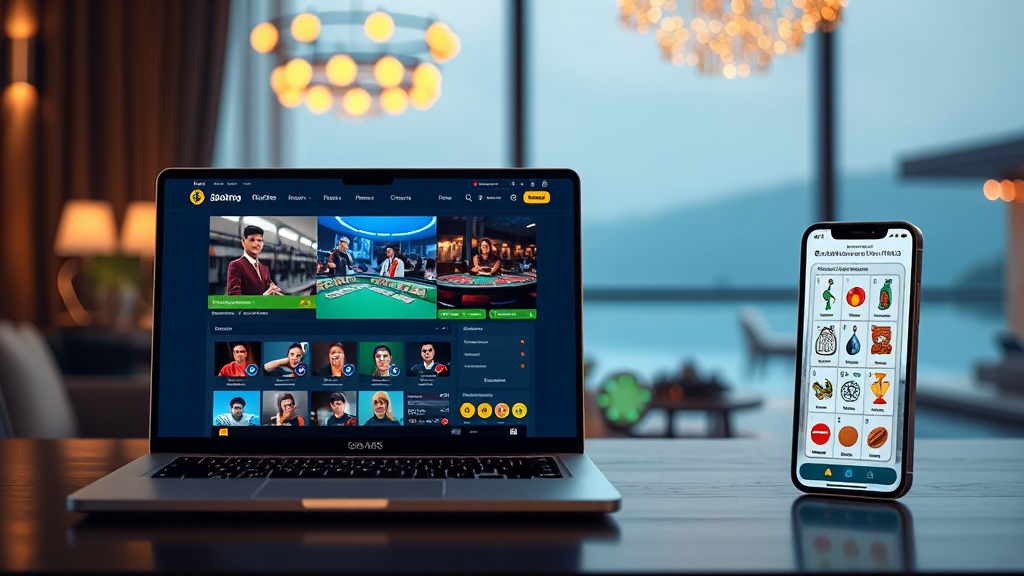
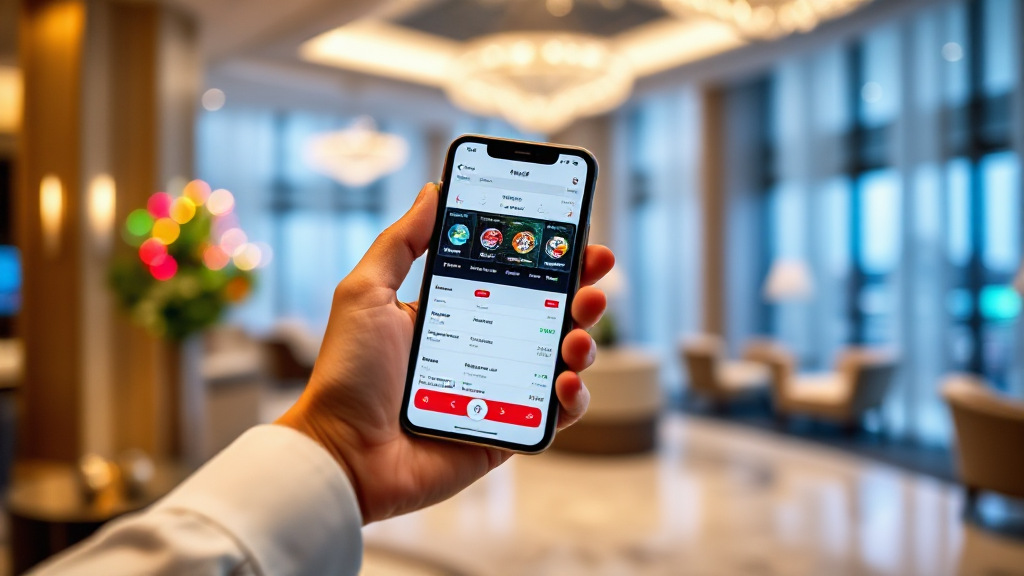
The downloadable app carries the same visual language as the browser version, which is the correct call. Users should not have to relearn the layout when they switch devices. The mobile screens compress the category strip and move the account icon into a bottom bar, which is a sensible adaptation for thumb-driven navigation. Load times on the app are noticeably better than the browser, and the reduced chrome around the content makes the smaller screen feel less crowded than the desktop equivalent.
If there is a single thread running through all of these screens, it is that tk999 organises its interface around the actions users take most often. Registration is short. Search is fast. Balance is visible. Limits are findable. Those are the choices that matter, and they are made well. The recurring weakness is visual: too many accent colours, too little spacing between dense list rows, and a loading state that leaves a blank screen for a beat too long.
None of those are structural problems. They are polish problems, and polish problems are the easiest kind to fix. As it stands, the interface reads as functional and legible, built by people who understand what a user is trying to do and how little patience they have while doing it. The layout does not fight the user. It occasionally crowds them, but it never loses them — and for a product where every extra second of hesitation is a lost action, that is the distinction that counts.